
TeamSpeak
One-click VPS application
TeamSpeak is a high-performance voice communication platform designed for gamers, teams, and online communities. Deploy your own TeamSpeak server on Linux and enjoy low-latency voice chat, crystal-clear audio, advanced permission management, and complete control over your communication infrastructure.
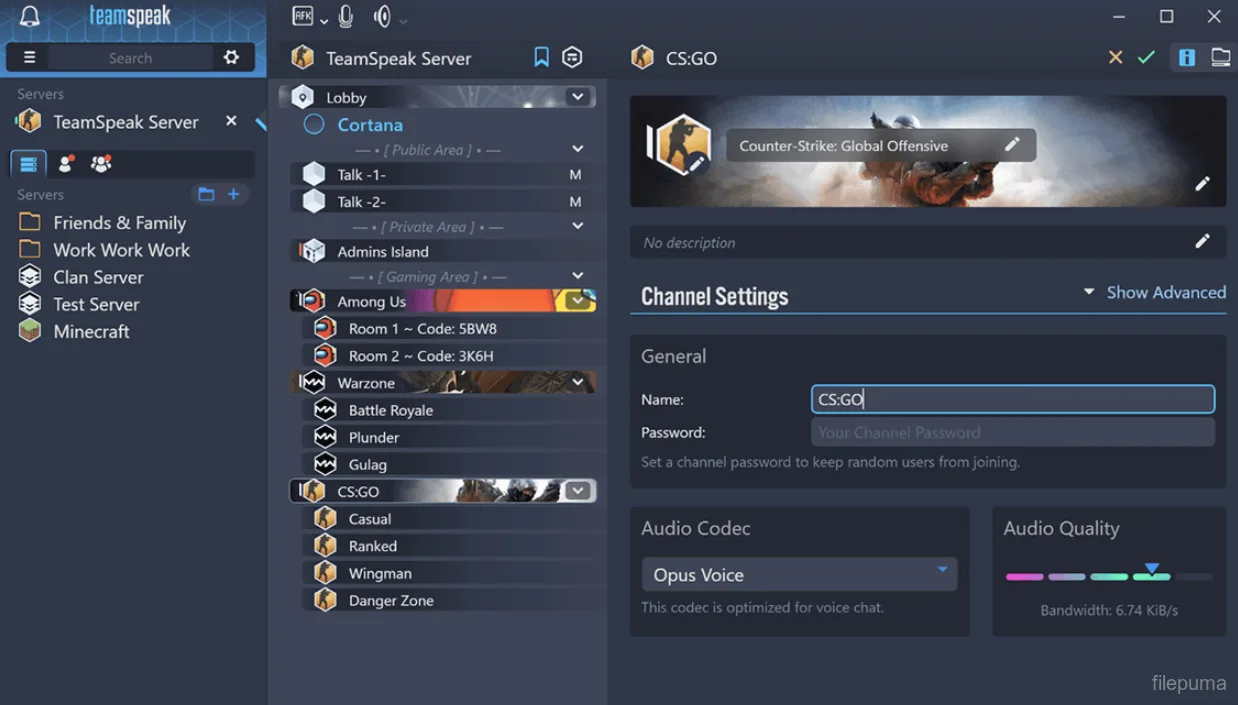


Information: TeamSpeak is a powerful and reliable voice communication platform designed for real-time collaboration, competitive gaming, and online communities. Its optimized architecture delivers high-quality audio with minimal latency and low resource consumption, making it suitable for both small private groups and large multiplayer communities.
By hosting your own TeamSpeak server, you gain full control over your data, communication channels, user permissions, and server configuration. Advanced permission management, customizable channel structures, and flexible administrative tools allow you to create a secure communication environment tailored to your needs.
With cross-platform clients, reliable connectivity, and extensive customization options, TeamSpeak provides a flexible and scalable solution for gaming communities, esports organizations, professional teams, and private groups.
Core Features
- Crystal-clear voice quality: Advanced audio engine delivers minimal latency and highest clarity for both small teams and large communities.
- Self-hosted servers: Install TeamSpeak on your own Linux server for full control, privacy, and unlimited scalability.
- Granular permissions: Flexible system for managing user groups, roles, and channel permissions to meet any organizational needs.
- End-to-end encryption: Industry-standard security for all communications, with options for server-wide or channel-specific encryption.
- Dynamic channel management: Easily create, manage, and organize multiple channels, subchannels, and groups for any project or event.
- Cross-platform apps: Official clients for Windows, macOS, Linux, iOS, and Android ensure access from any device.
- File transfer: Share files securely and directly with other users or entire channels.
- Powerful admin tools: Comprehensive dashboard for server monitoring, logs, and automated user/group management.
- Integrations and plugins: Extend functionality with bots, plugins, API access, and third-party integrations for gaming or business workflows.
Deployment Features
- Installed software:
TeamSpeak 3 ServerTeamSpeak Web Administration Panelnginx(Used as a web server for the administration panel.)PHP 7.4 FPM(Required for the web administration panel.)SQLiteOpenSSL(Used to generate a self-signed TLS certificate.)
- Open ports:
80,443– Web administration (HTTP/HTTPS)9987/UDP– Voice communication10011/TCP– ServerQuery access30033/TCP– File transfer
Note: TeamSpeak is configured to start automatically after a system reboot. Server administrator credentials and the privilege key are stored in /root/ts3_login_data. The web administration panel uses a self-signed TLS certificate by default, which may trigger a browser security warning.
Getting Started After TeamSpeak Deployment
After completing your payment, you will receive an email at the address provided during registration notifying you that your server is ready. This email will include the IP address of your VPS and login credentials to access the TeamSpeak web interface:
- Link: Provided in your deployment email
- User: Provided in your deployment email
- Password: Provided in your deployment email
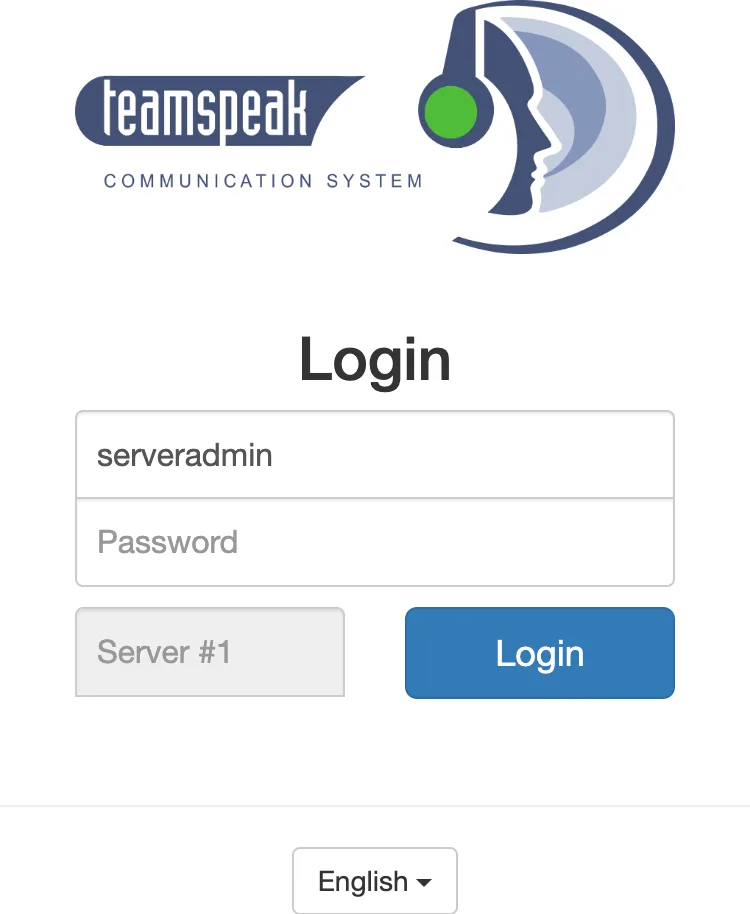
Initial Setup
After logging into the TeamSpeak control panel, you will see a straightforward interface for managing your servers. All essential information and actions are located in a single table: you can check server status, uptime, number of connected users, enable autostart, and access server options from the main screen. The navigation menu at the top allows you to switch between the server list and server management sections.
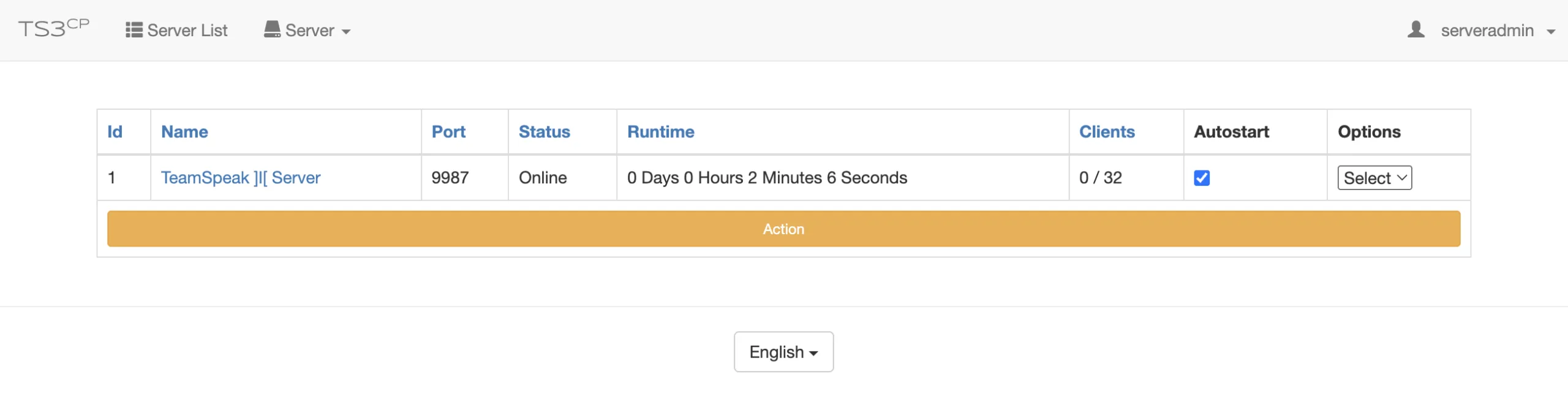
- Server List: View all created TeamSpeak servers, including their names, ports, and statuses.
- Status & Uptime: Check if your server is online, monitor its uptime and the number of connected clients.
- Autostart: Enable or disable automatic server startup after a reboot.
- Server Options: Use the drop-down menu to manage or configure your TeamSpeak server (start, stop, edit, etc.).
- User Account: View your current user (serveradmin) and change settings or log out from the top-right menu.
- Language Selector: Easily switch the interface language with the button at the bottom of the page.
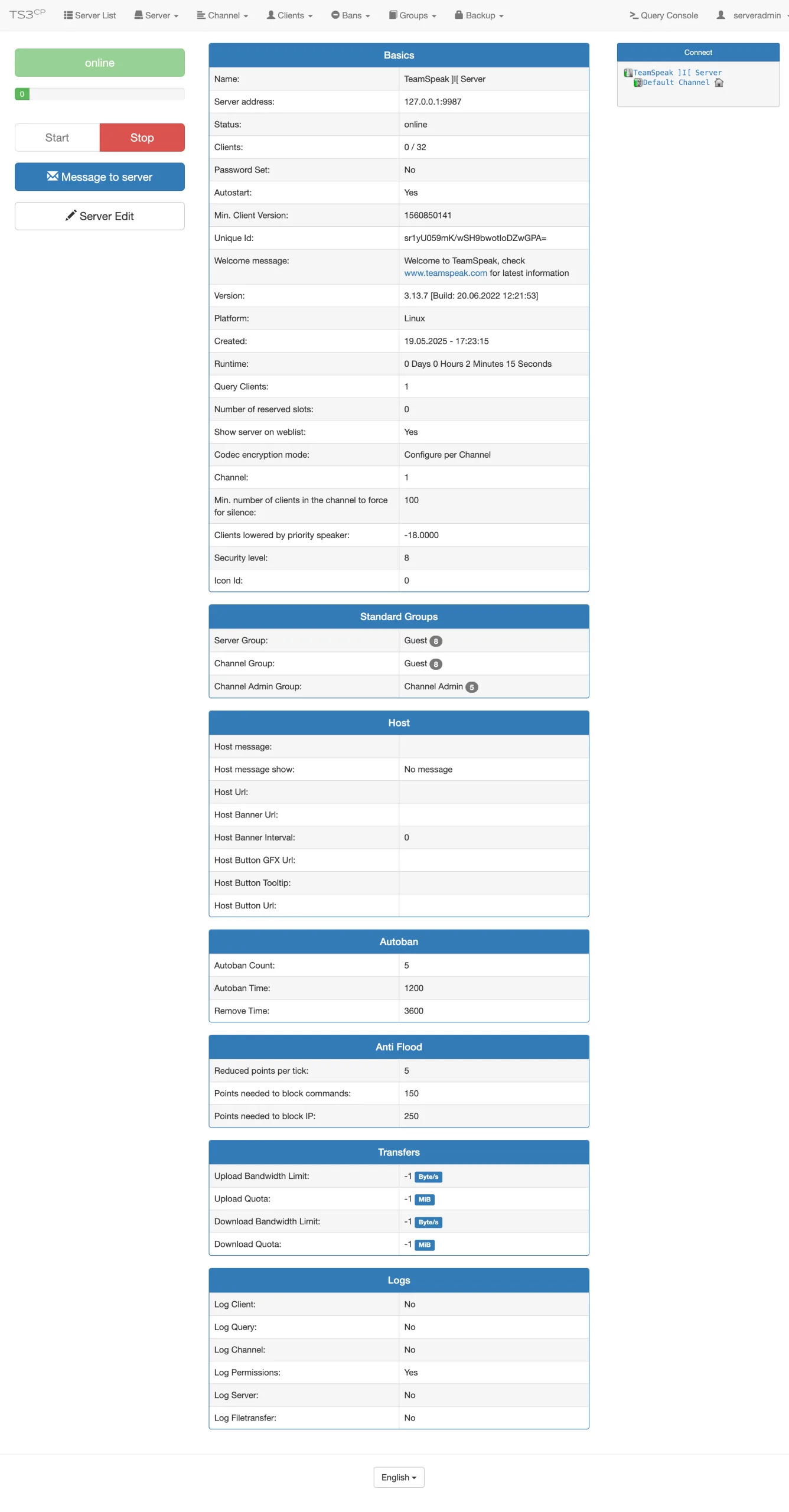
- Server status and actions: The left panel displays the current status of the TeamSpeak server (online/offline) and provides controls to start, stop, or send messages to the server.
- Server information: The central area shows detailed server parameters: name, IP/port, status, online users, version, runtime, security settings, welcome message, and more.
- Groups: Displays assigned server, channel, and admin groups for managing permissions and user roles.
- Host settings: Configure host messages, banner URLs, intervals, and custom button actions for users connecting to the server.
- Autoban: Set up automatic ban triggers, including thresholds for warnings and ban durations to protect your server from abuse.
- Anti-Flood: Manage anti-flood settings, including limits for commands per second and IP bans for excessive requests.
- Transfers: Control server bandwidth and quota limits for file transfers, including upload and download restrictions.
- Logs: Access and configure various server logs for monitoring client actions, permissions, queries, and file transfers.
Note: Detailed information on the main TeamSpeak settings can be found in the developer documentation.
TeamSpeak Mobile and Desktop Apps
If you already have access to a TeamSpeak server, you can connect directly using the server address. Simply enter the provided address in the TeamSpeak desktop or mobile app to log in with your credentials and start collaborating.





Opening SMTP Ports
For security reasons, outgoing TCP ports (25, 465, and 587) are blocked by default on all VPS servers. This measure aims to prevent spam distribution. To lift the block, follow these steps:
- Register your domain zone. The A-record for your domain must point to your server’s IP address.
- Submit a request to technical support specifying that you need to open outgoing SMTP ports for sending email and the domain (or subdomain) from which it will be sent.
- After analyzing your domain name, we will make a decision on opening the SMTP ports and notify you.
Attention: Opening SMTP ports may require additional details about your domain name and its intended use.
Ready to launch your VPS?
Choose a plan that suits your needs and enjoy fast NVMe SSD storage.
Get started