
n8n
One-click VPS application
A self-hosted workflow automation platform for connecting applications, APIs, and online services through a visual editor. Create automated processes with triggers, conditions, data transformations, and reusable integrations. Extend workflows with custom code when needed, while keeping control over credentials, execution history, and automation data on your own VPS.


Information
n8n is a source-available workflow automation platform that lets you visually connect apps and APIs to automate tasks and workflows. Easily install n8n on any Linux server to design custom automations without coding, manage integrations, and keep full control of your data. The intuitive web interface makes automation accessible for teams, businesses, and individual creators.
Core Features
- Visual workflow builder: Create automation workflows with a simple drag-and-drop interface.
- Connect any app or API: Integrate hundreds of services out-of-the-box or use custom API calls.
- Event and schedule triggers: Launch workflows based on webhooks, timers, or custom events.
- Data transformation: Filter, format, and transform data between connected services.
- Self-hosted and source-available: Deploy n8n on your own server for privacy and full control.
- Unlimited workflow runs: No n8n-imposed execution limits for self-hosted instances (server resources still apply).
- User management: Invite team members and assign roles for collaborative workflow building.
- Workflow export and backups: Export, import, and save your workflows as JSON for easy backups.
Deployment Features
- Installed software:
Docker CEDocker Compose
- Used containers:
docker.n8n.io/n8nio/n8ndocker.io/traefik— Reverse proxy that automatically generates certificates, enabling secure HTTPS access to your n8n instance via the specified domain.
- Open ports:
80,443— Web access (HTTP/HTTPS)
- Files path:
/opt/n8n
Getting Started After n8n Deployment
After completing your payment, you will receive an email at the address provided during registration notifying you that your server is ready. This email will include the IP address of your VPS and login credentials to access the n8n web interface:
- Link: Provided in your deployment email
- User: Provided in your deployment email
- Password: Provided in your deployment email
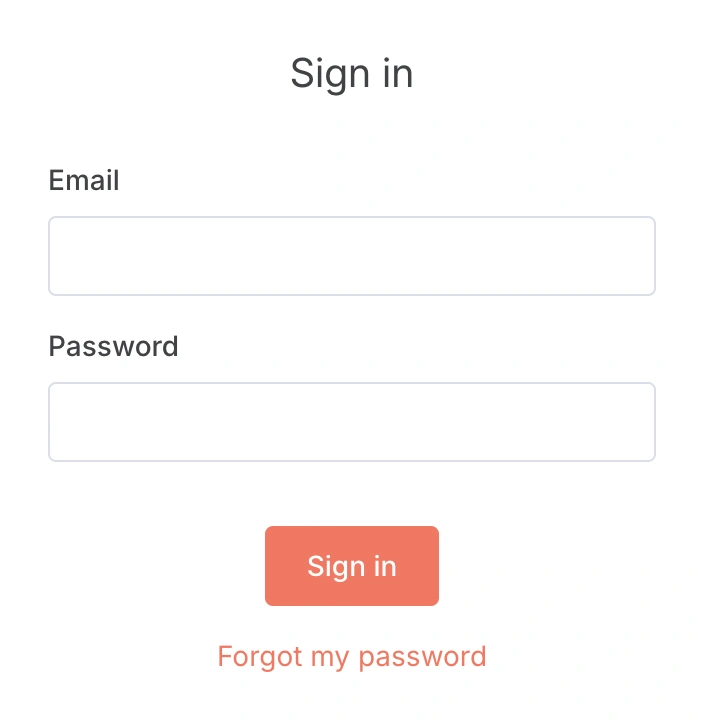
To access n8n, log in with your administrator account. Enter your username and password on the login page to securely manage workflows and server settings.
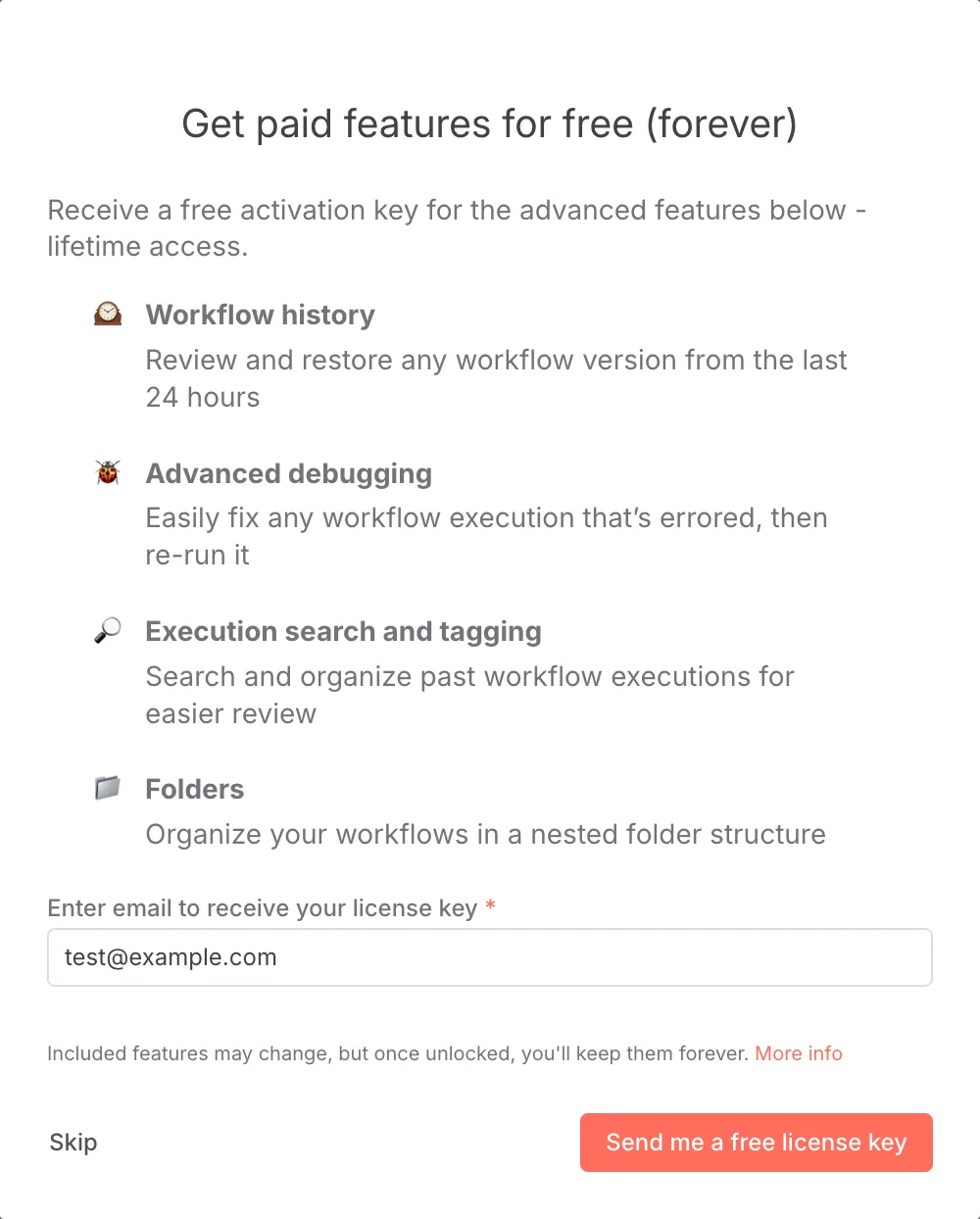
n8n offers additional features for self-hosted users — such as workflow history, advanced debugging, execution search, and workflow folders. Some additional features may be available through a free registered community license. Check the current terms and included features before activating the free community license.
Initial Setup
After logging in, you will see the n8n dashboard. Here you can monitor workflow executions, check automation statistics, and quickly start building your first workflow with the visual editor. The dashboard provides instant access to your workflows, credentials, and execution history—everything you need to manage your automations in one place.
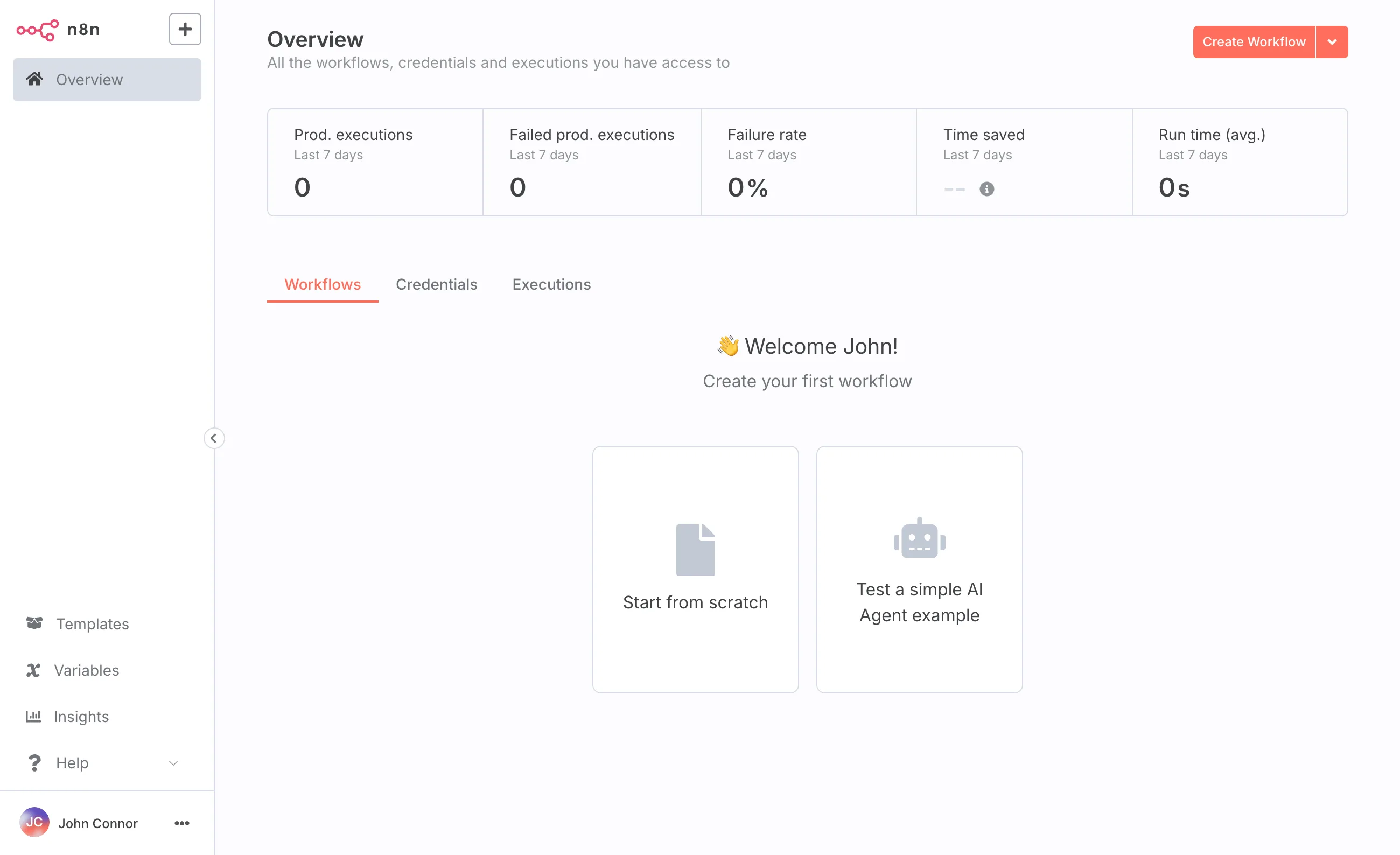
- Start from scratch: Build your own automation workflow using the drag-and-drop editor.
- Use ready templates: Choose from pre-built workflow templates to automate common tasks faster.
- Manage credentials: Safely store API keys and access tokens to connect your services.
- Track executions: View workflow run history, errors, and execution statistics.
- Invite your team: Add team members for collaborative automation and workflow building.
Detailed information on the main n8n settings can be found in the developer documentation.
Updating n8n
When a new n8n version is released, you can update the Docker containers. Back up your data and configuration first, review release notes for breaking changes, and ensure persistent volumes are configured correctly. You can learn about new releases on the official release notes.
Commands for updating n8n:
cd /opt/n8n
docker compose pull
docker compose up -d
Example of how to perform the update in the SSH console:
[root@server ~]# cd /opt/n8n

[root@server ~]# docker compose pull
[+] Pulling 2/2
✔ traefik Pulled
✔ n8n Pulled

[root@server ~]# docker compose up -d
[+] Running 2/2
✔ Container n8n-traefik-1 Running
✔ Container n8n-n8n-1 Running
Opening SMTP Ports
For security reasons, outgoing TCP ports (25, 465, and 587) are blocked by default on all VPS servers. This measure aims to prevent spam distribution. To lift the block, follow these steps:
- Register your domain zone. The A-record for your domain must point to your server’s IP address.
- Submit a request to technical support specifying that you need to open outgoing SMTP ports for sending email and the domain (or subdomain) from which it will be sent.
- After analyzing your domain name, we will make a decision on opening the SMTP ports and notify you.
Opening SMTP ports may require additional details about your domain name and its intended use.
Ready to launch your VPS?
Choose a plan that suits your needs and enjoy fast NVMe SSD storage.
Get started