
Pterodactyl
One-click VPS application
A self-hosted game server management platform that simplifies the deployment and administration of dedicated game servers. Manage multiple gaming environments, control server resources, and monitor performance through a centralized web interface.
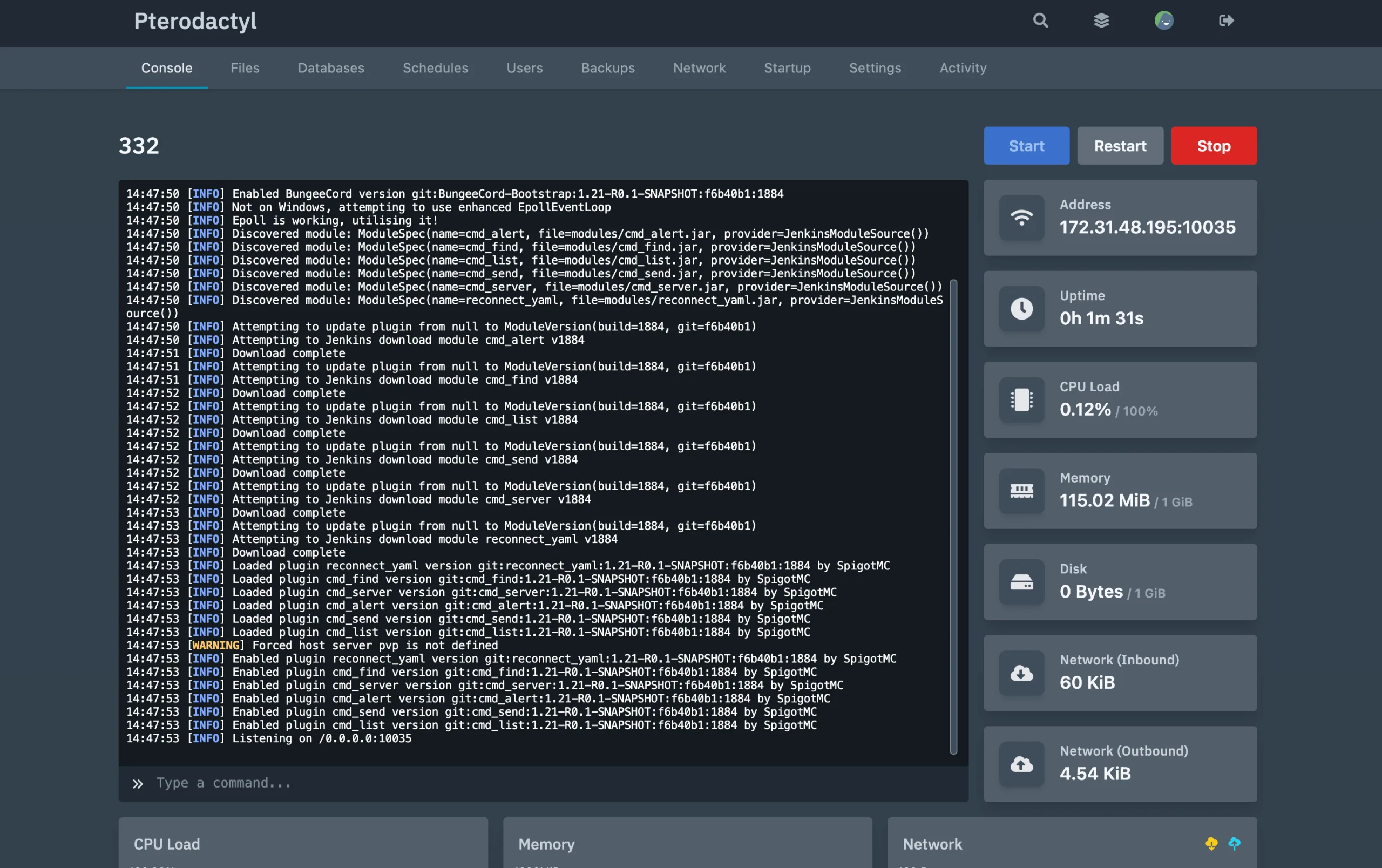


Information: Pterodactyl is a free, open-source game server management panel built for Linux environments. Its architecture uses Docker containers to isolate individual game servers, providing consistent deployment, resource management, and enhanced security. The platform supports a wide range of games, including Minecraft, Counter-Strike 2, Rust, and ARK, through customizable server templates known as Eggs.
The web-based administration panel provides centralized server management, real-time console access, file management, scheduled tasks, automated backups, and granular user permissions. Its multi-node architecture allows administrators to distribute game servers across multiple physical or virtual machines. Designed for gaming communities, hosting providers, and independent administrators, Pterodactyl offers a flexible and scalable solution for managing dedicated gaming infrastructure.
Core Features
- Game server management: intuitive web interface for deploying, configuring, and monitoring Minecraft, CS:GO, Rust, ARK, Valheim, and many other popular games.
- Docker-based isolation: every server runs in a secure Docker container to isolate workloads and improve security.
- Role-based access: flexible permission system for admins, users, and teams. Delegate management and restrict actions for different roles.
- Automated server installation: deploy game servers and install updates in one click. Pre-configured templates for popular games.
- Real-time monitoring: live server statistics, resource usage (CPU, RAM, disk), and activity logs.
- Automated backups and restoration: scheduled and manual backups of server data for quick recovery.
- Custom plugins and mods: support for installing and managing plugins, mods, and custom configurations for each game server.
- Secure SFTP access: each user gets isolated SFTP access for file uploads and management.
- Multi-node support: manage servers across multiple physical or virtual machines from a single panel.
- REST API for automation: integration with billing, monitoring, and automation systems via a powerful API.
Deployment Features
Pterodactyl offers three installation modes depending on your infrastructure and needs:
- Panel + Node: Full installation where both the admin panel and game server node are hosted on the same machine. Suitable for small or personal projects, quick start, or testing.
- Panel: Only the management panel is installed. Used to control and manage multiple remote nodes. Suitable for larger infrastructures with many game servers on different machines.
- Node: Only the game server node is installed. Connects to an external panel for game hosting. This option is used to scale your network and add more physical or virtual servers.
Getting Started After Pterodactyl Deployment
After completing your payment, you will receive an email at the address provided during registration notifying you that your server is ready. This email will include the IP address of your VPS and login credentials to access the Pterodactyl web interface:
- Link: Provided in your deployment email
- User: Provided in your deployment email
- Password: Provided in your deployment email
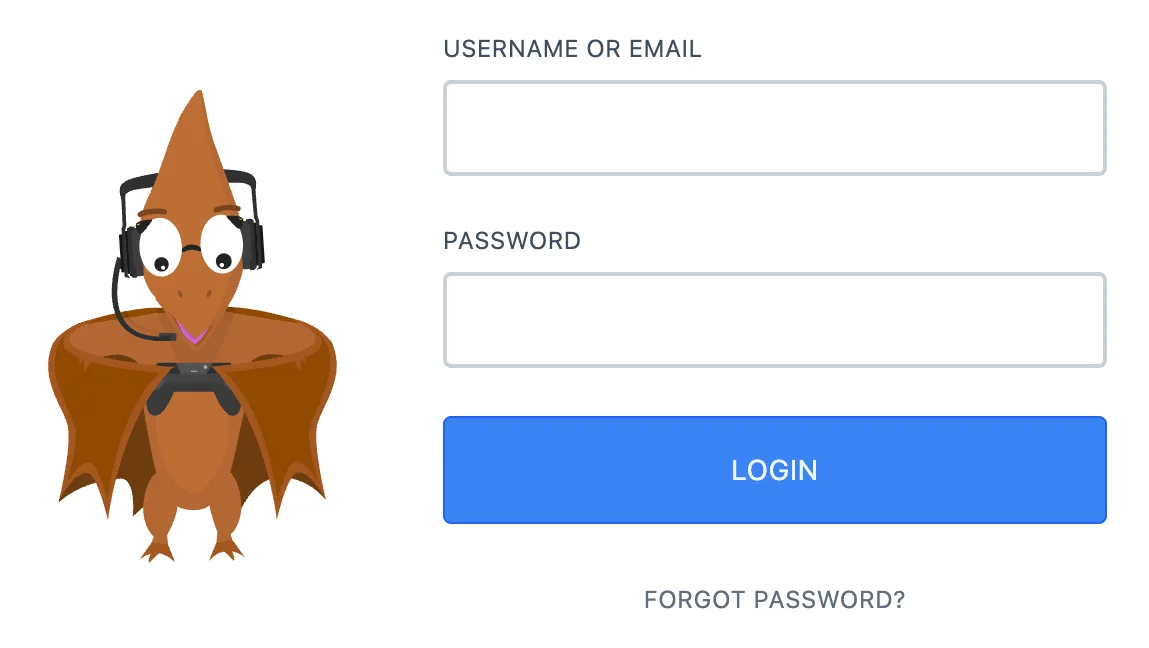
Initial Setup
After logging into Pterodactyl, you will see a modern dashboard with a left-side navigation menu. This menu groups all essential tools for managing game servers, users, and resources, making administration convenient for both beginners and experienced users:
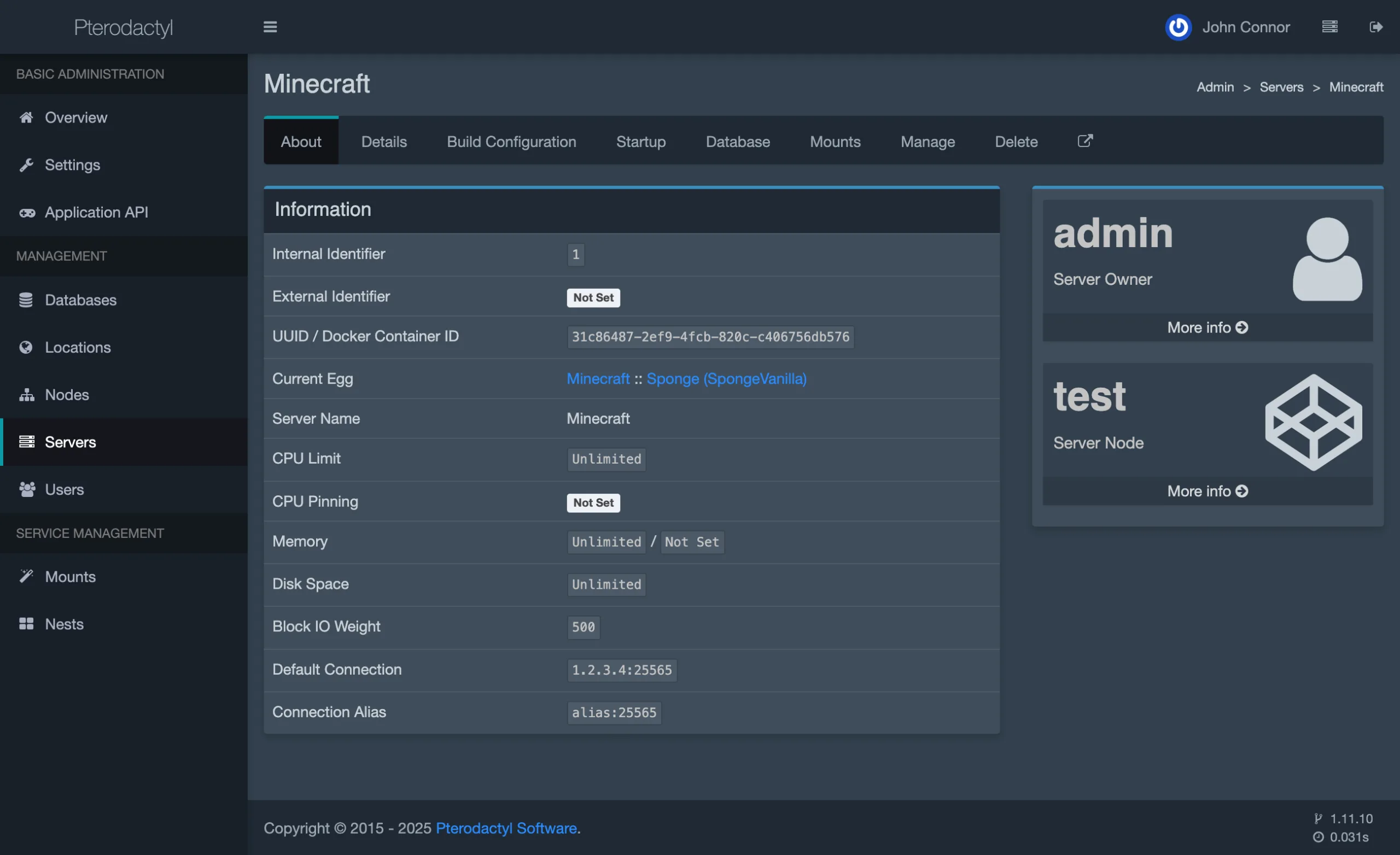
- Overview: The main dashboard displaying a summary of servers, resource usage, recent activity, and quick links to key actions.
- Settings: Access and modify global panel settings, API credentials, and general configuration options.
- Application API: Manage API access for integrating external services and automating panel tasks.
- Databases: Create and manage databases for game servers and applications.
- Locations: Define physical or virtual locations for nodes to organize server infrastructure.
- Nodes: Manage nodes (physical/virtual servers) where game instances are deployed, monitor their status and performance.
- Servers: Add, configure, and monitor game servers (any supported game), manage resource limits, and control server status.
- Users: Create and manage panel user accounts, assign roles, and set permissions.
- Mounts: Manage storage mounts to share files or storage directories across multiple servers.
- Nests: Template management for different game types or environments, simplifying server deployment.
Note: Detailed information on the main Pterodactyl settings can be found in the developer documentation.
Server Management and Monitoring
After creating a server in Pterodactyl, you will be taken to the server management page. Here you can monitor and control the server in real time, access all its configuration options, view logs, and manage files and users. The interface is divided into several tabs, making server administration clear and straightforward for both beginners and experienced admins:
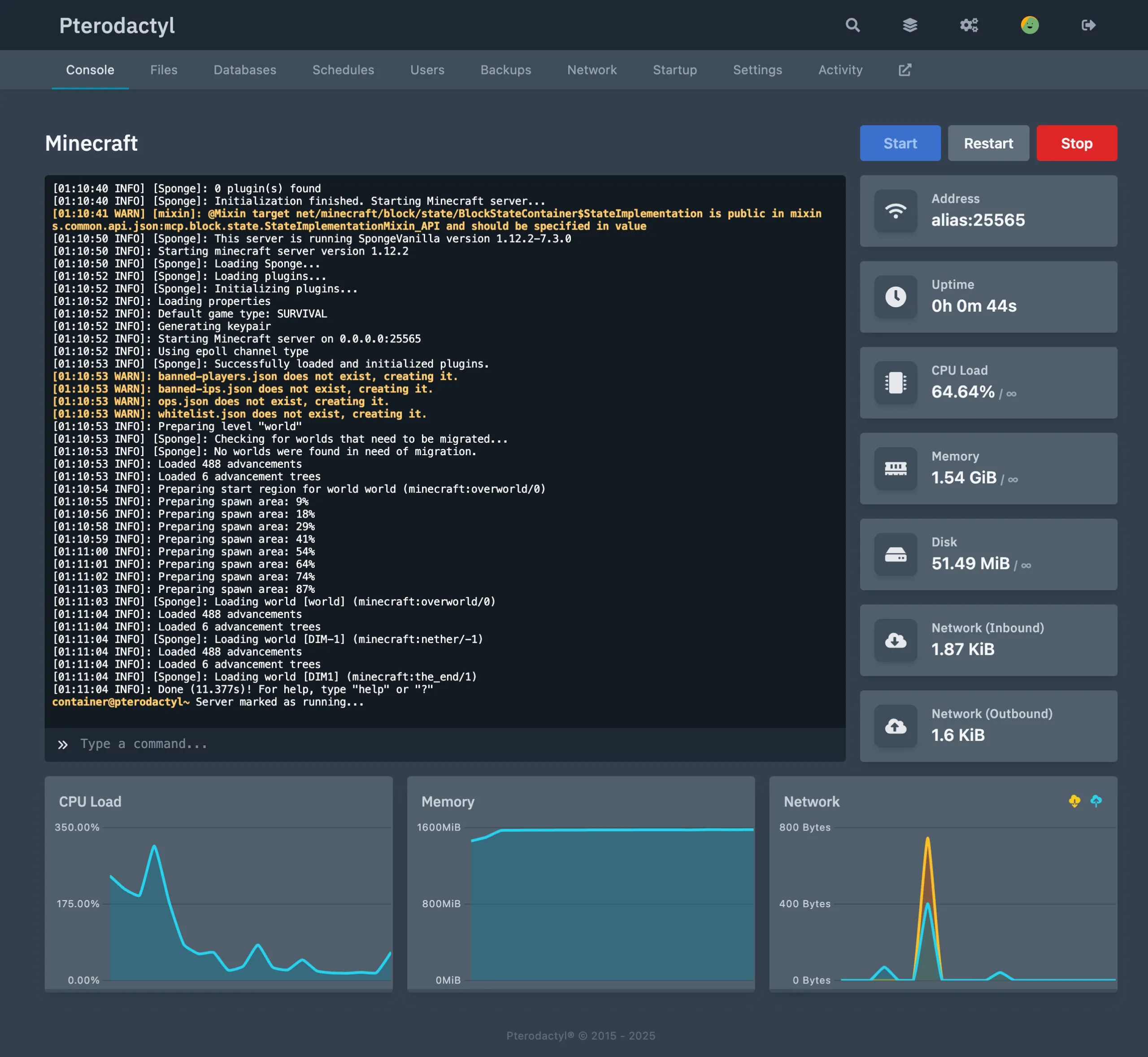
- Console: Real-time server console for viewing logs, sending commands, and monitoring server activity directly from the browser.
- Files: Access, upload, edit, and manage all server files and directories.
- Databases: Create and manage databases associated with your server, including connection details.
- Schedules: Set up automated tasks (backups, restarts, command execution) according to your custom schedule.
- Users: Manage server access: invite new users, assign permissions, and control roles.
- Backups: Create, download, restore, and manage backups for your server data.
- Network: View and manage assigned IP addresses, ports, and network connections.
- Startup: Configure startup variables, environment settings, and launch commands for the server.
- Settings: Adjust server settings such as server name, resource limits, reinstall options, and control panel preferences.
- Activity: View a log of all actions performed on this server for transparency and security.
Updating Pterodactyl
You can find detailed instructions for updating the panel on the official documentation page. You may also need to update PHP as described here, and upgrade Wings — the system service that runs and manages your game servers. Wings update instructions can be found here.
Information: What is Wings? Wings is a lightweight system service installed on each server where your game containers run. It acts as a bridge between the Pterodactyl panel and the actual servers, handling the start, stop, and restart of game containers, managing resources and logs, and ensuring secure isolation of each server. Wings processes panel commands in real time, controls file access, monitors performance, and enables stable and efficient server management.
Opening SMTP Ports
For security reasons, outgoing TCP ports (25, 465, and 587) are blocked by default on all VPS servers. This measure aims to prevent spam distribution. To lift the block, follow these steps:
- Register your domain zone. The A-record for your domain must point to your server’s IP address.
- Submit a request to technical support specifying that you need to open outgoing SMTP ports for sending email and the domain (or subdomain) from which it will be sent.
- After analyzing your domain name, we will make a decision on opening the SMTP ports and notify you.
Attention: Opening SMTP ports may require additional details about your domain name and its intended use.
Ready to launch your VPS?
Choose a plan that suits your needs and enjoy fast NVMe SSD storage.
Get started