
ISPmanager
One-click VPS application
A web hosting control panel for managing Linux servers, websites, domains, databases, email, and DNS. Manage files, SSL certificates, users, and backups from one interface. Tools for installing applications and monitoring services simplify server administration.


Information
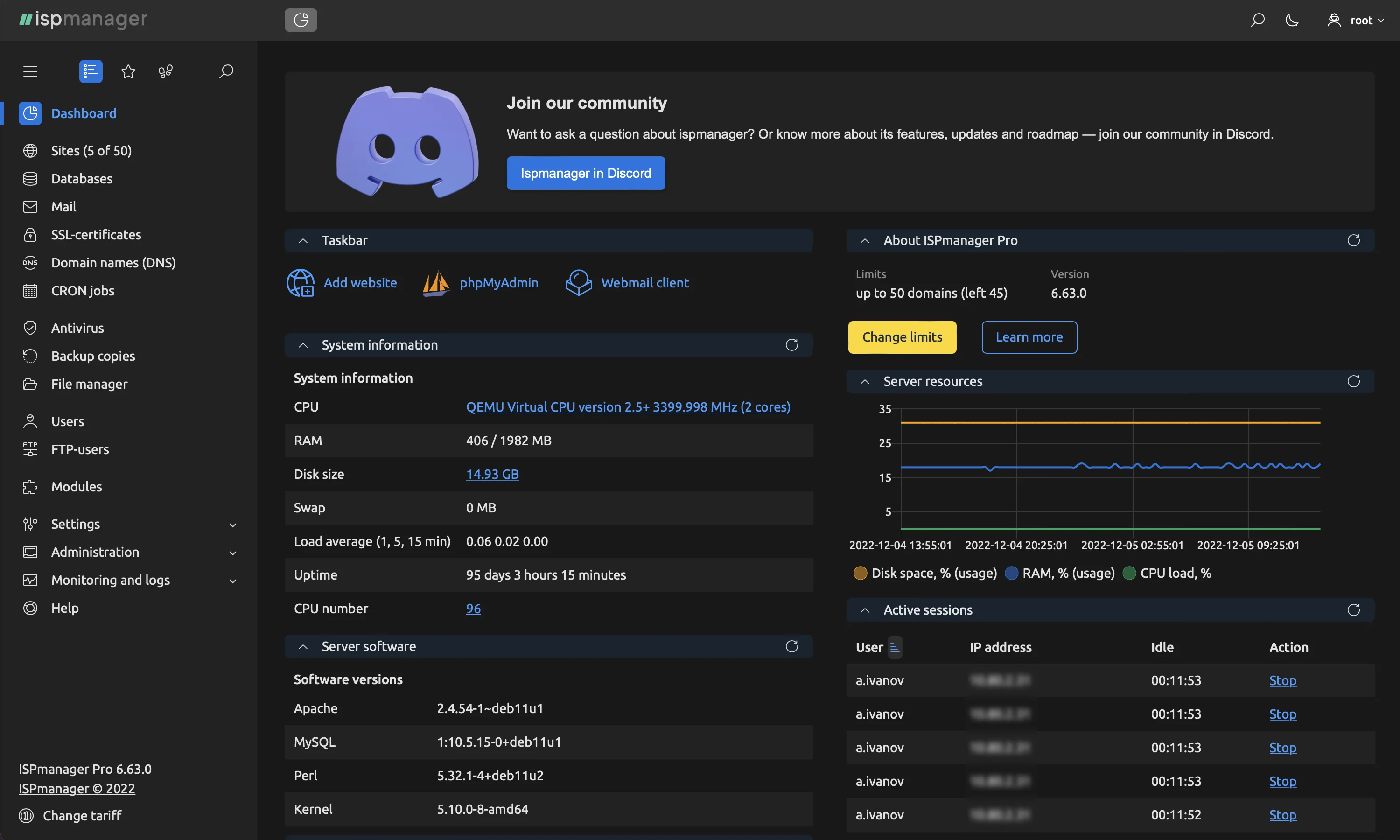
ISPmanager is a modern and flexible control panel for managing Linux servers, websites, mail, domains, and databases through an intuitive web interface. The panel supports popular distributions (including Debian, Ubuntu, AlmaLinux, CentOS), offers convenient management of virtual and dedicated servers, and is suitable for hosting providers, developers, and businesses. Key features include a built-in file manager, Let's Encrypt SSL support, automatic updates and backups, powerful security tools, multi-user management, and one-click installation of popular CMS and web applications. ISPmanager helps streamline website deployment and server administration.
Core Features
- Web server management: intuitive support for Apache, Nginx, and LiteSpeed; easy configuration of domains, subdomains, SSL certificates (including Let's Encrypt), redirects, and access settings.
- Database management: work with MySQL, MariaDB, and PostgreSQL, including creation, administration, user access, and easy import/export.
- Mail services: built-in mail server with support for DKIM, SPF, DMARC, convenient webmail, spam filters, and mail domains.
- File manager: a modern web file manager for uploading, editing, and managing files directly from the browser.
- User and access management: multi-level access, role distribution for administrators, users, and resellers.
- System monitoring: real-time server statistics, resource monitoring, service and log tracking.
- Automatic updates and security: regular updates, two-factor authentication, network protection tools, and malware scanning.
- One-click application installer: install WordPress, Joomla, Bitrix, Drupal, and other popular CMS and web apps in just a few clicks.
- Backup and restore: flexible backup schedules, cloud and local storage, and simple recovery of websites, mail, and databases.
ISPmanager is a commercial control panel and requires a paid license. You can select and activate your license either before or after installation. A 14-day free trial license for ISPmanager 6 is available on the official website.
- Lite: Suitable for personal or small projects. Includes unlimited accounts and supports up to 10 sites.
- Pro: A good solution for freelancers, web studios, and internal marketing teams. Offers unlimited accounts, supports up to 50 sites, and integrates with Docker.
- Host: Ideal for web studios and traffic managers. Provides support for an unlimited number of sites.
Getting Started After ISPmanager Deployment
After completing your payment, you will receive an email at the address provided during registration notifying you that your server is ready. This email will include the IP address of your VPS and login credentials to access the ISPmanager web interface:
- Link: Provided in your deployment email
- User: Provided in your deployment email
- Password: Provided in your deployment email
Initial Setup
After logging into ISPmanager, you are greeted by a modern dashboard with a side menu on the left. This menu organizes all essential tools for server and website administration, making daily management intuitive and efficient:
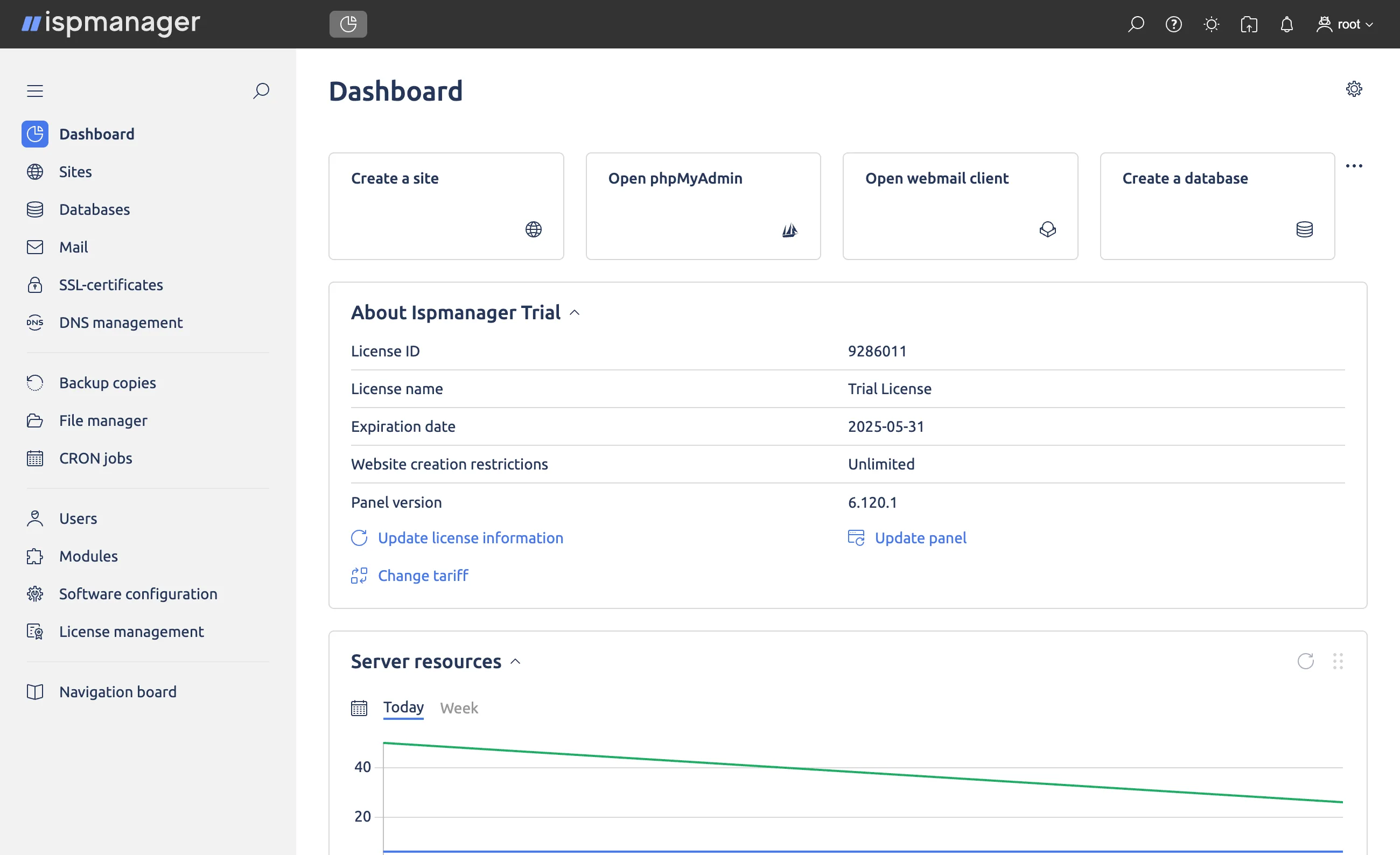
- Dashboard: Shows an overview of your server, including quick actions (create a site, open phpMyAdmin, webmail, database), license info, and server resource statistics.
- Sites: Manage all hosted sites: add new websites, edit existing ones, and control domain settings.
- Databases: Create, manage, and configure MySQL/MariaDB databases. Open phpMyAdmin for advanced administration.
- Mail: Configure and manage mail domains, mailboxes, and webmail access.
- SSL-certificates: Issue and manage SSL certificates (including Let's Encrypt) for secure websites and services.
- DNS management: Set up and manage DNS zones and records for your domains.
- Backup copies: Schedule and manage backup copies for websites, databases, and emails.
- File manager: Browse, upload, edit, and manage server files directly in your browser.
- CRON jobs: Create and manage scheduled tasks for automation.
- Users: Manage panel users, assign roles, and restrict access as needed.
- Modules: Install and manage additional modules and integrations.
- Software configuration: Adjust software settings and services installed on the server.
- License management: View and update license details or change your tariff.
- Navigation board: Quick access to all available sections of the panel.
Detailed information on the main ISPmanager settings can be found in the developer documentation.
Opening SMTP Ports
For security reasons, outgoing TCP ports (25, 465, and 587) are blocked by default on all VPS servers. This measure aims to prevent spam distribution. To lift the block, follow these steps:
- Register your domain zone. The A-record for your domain must point to your server’s IP address.
- Submit a request to technical support specifying that you need to open outgoing SMTP ports for sending email and the domain (or subdomain) from which it will be sent.
- After analyzing your domain name, we will make a decision on opening the SMTP ports and notify you.
Opening SMTP ports may require additional details about your domain name and its intended use.
Ready to launch your VPS?
Choose a plan that suits your needs and enjoy fast NVMe SSD storage.
Get started