
Modoboa
One-click VPS application
A self-hosted email platform for deploying and managing your own mail infrastructure. Create mail domains, manage mailboxes, and provide secure email access through a centralized web interface while retaining full control over your data and server environment.
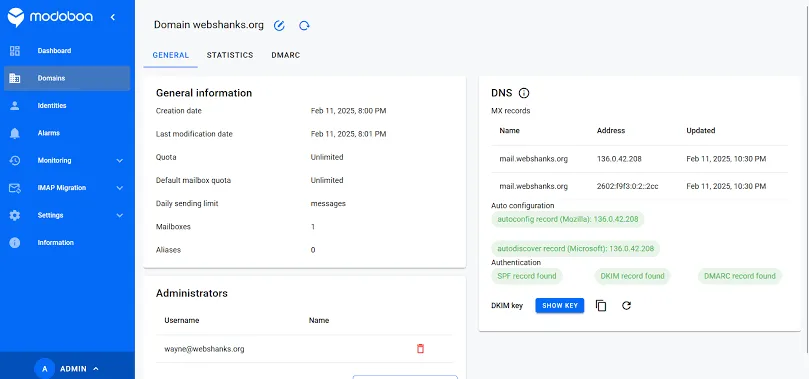


Information: Modoboa is an open-source mail server solution that combines email administration, webmail, calendars, contacts, and security tools within a unified environment. Its modular architecture simplifies domain management, user administration, spam filtering, and antivirus protection. Designed for businesses, organizations, and independent administrators, Modoboa provides a flexible alternative to third-party email services without relying on external providers to host your mail data.
Core Features
- Modern web interface: manage domains, users, mailboxes, aliases, and settings from a user-friendly control panel.
- Anti-spam and antivirus: built-in spam and virus filtering using Amavis, SpamAssassin, and ClamAV.
- Multiple domain support: host and manage multiple domains, mailboxes, and aliases from a single server.
- Webmail, calendars, and contacts: built-in webmail client plus plugins for CalDAV and CardDAV integration.
- Email reputation and security: DKIM, DMARC, SPF, and DNSBL tools help keep your email trusted and protected.
- Monitoring and statistics: see live graphs and detailed reports on mail flow and server health.
- Open-source and self-hosted: deploy Modoboa on your own server to retain control over your mail data.
Deployment Features
- Installed software:
nginxpostfixdovecotamavisd-newclamavspamassassinopendkimfail2banmemcachedredisuwsgi(for Modoboa)radicale(CardDAV/CalDAV)postgresql
- Open ports:
80,443– Web access (HTTP/HTTPS)25(SMTP),587(SMTP Submission)993(IMAPS),143(IMAP)4190– Sieve mail filtering (ManageSieve)
- Files path:
/srv/modoboa/
Note: If your server has less than 3 GB RAM, the following components will be automatically disabled to ensure stable operation:
- ClamAV — an antivirus scanner for email attachments. It helps protect your mailboxes from malware, but requires a significant amount of RAM and CPU resources.
Getting Started After Modoboa Deployment
After completing your payment, you will receive an email at the address provided during registration notifying you that your server is ready. This email will include the IP address of your VPS and login credentials to access the Modoboa web interface:
- Link: Provided in your deployment email
- User: Provided in your deployment email
- Password: Provided in your deployment email
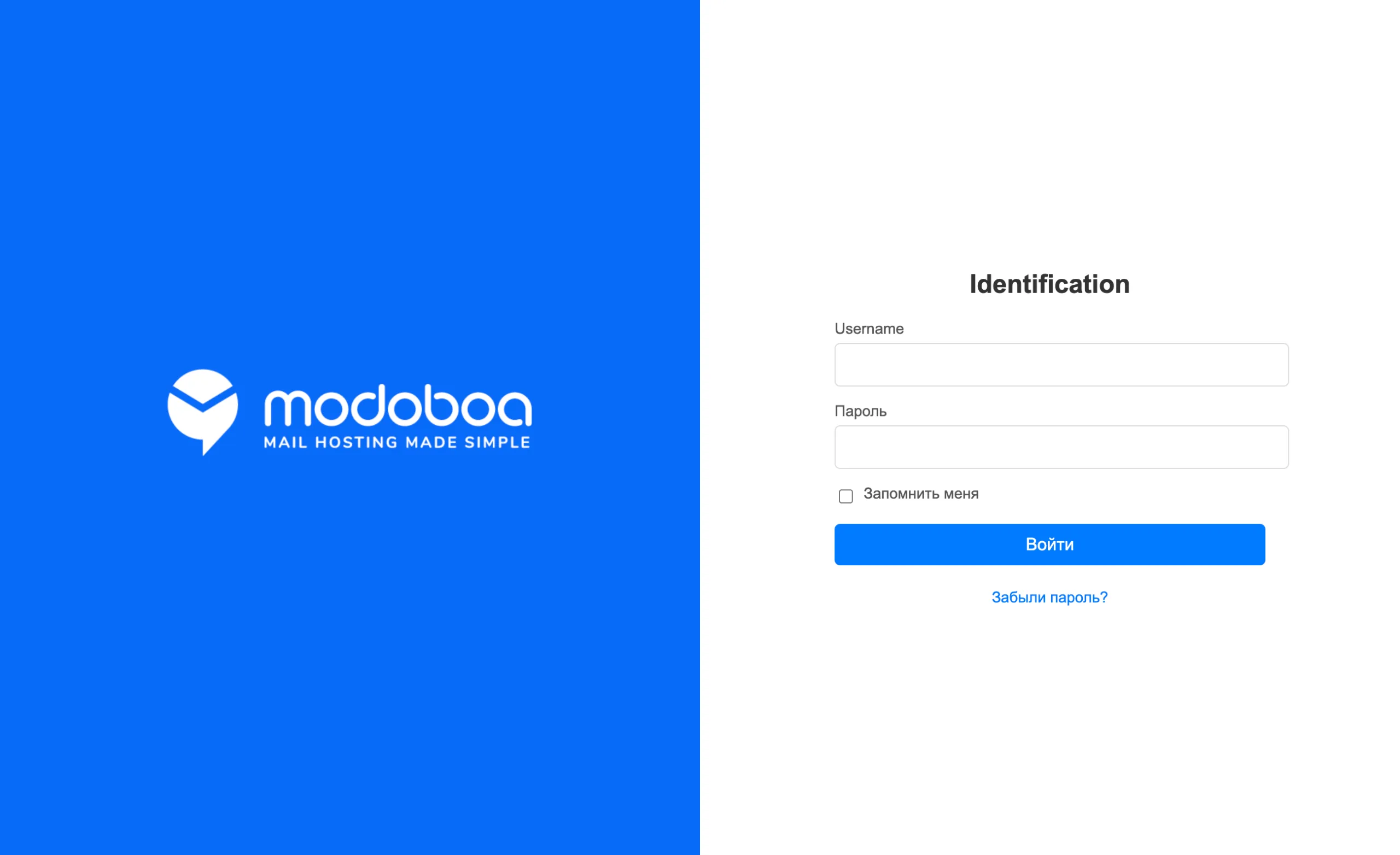
To access Modoboa, log in with your administrator account. Enter your username and password on the login page to securely manage your mail system and server settings.
Initial Setup
After logging into Modoboa, you are greeted by an admin dashboard with the latest news, version info, and key global statistics on your mail system. The top menu provides instant access to mail domains, user identities, quarantine, server statistics, and advanced administration. All main actions and reports are grouped for quick navigation and daily management:
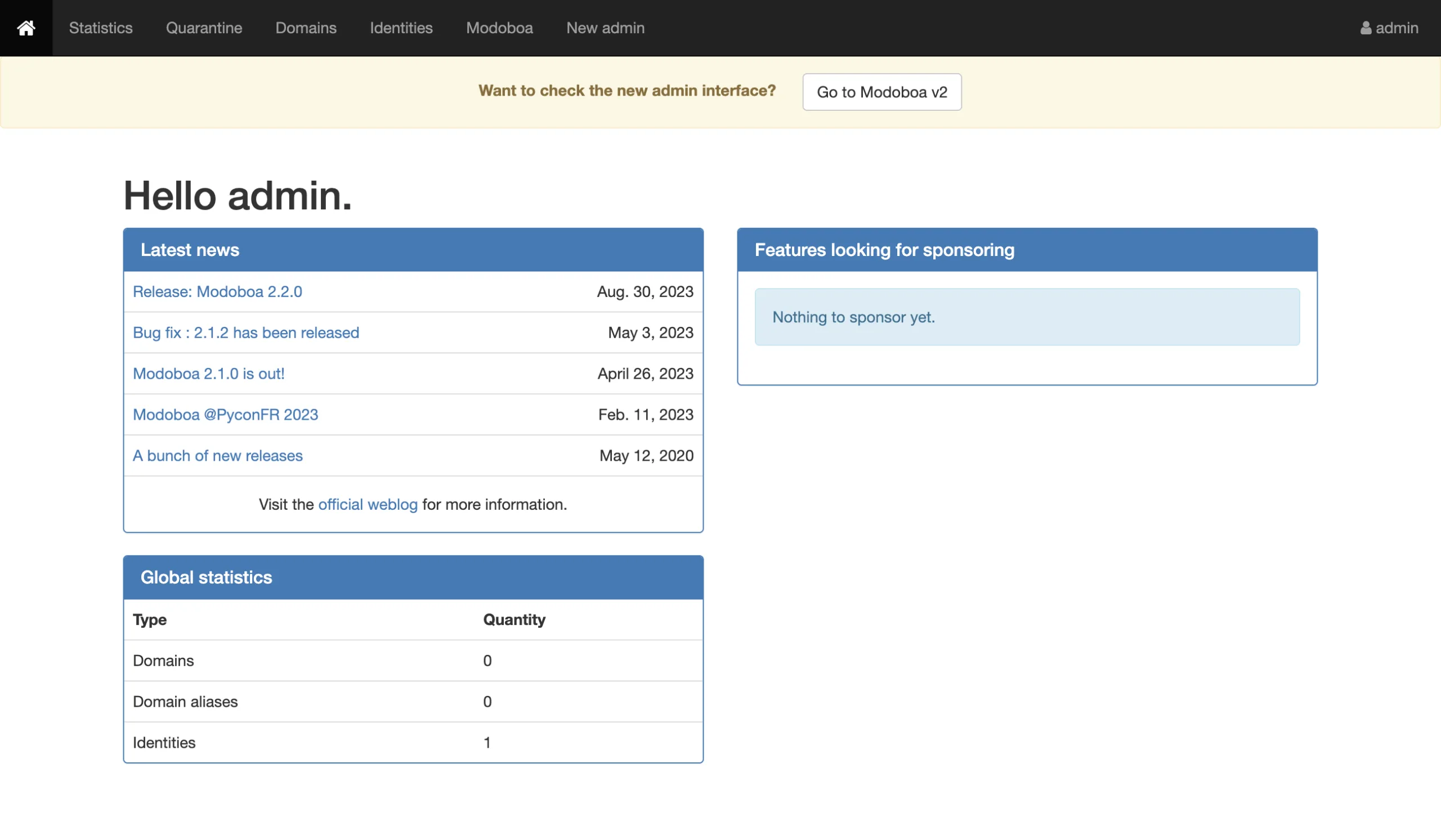
- Dashboard & statistics: View news, recent releases, server status, and global stats on domains, aliases, and users.
- Domains & users: Easily add, edit, or remove mail domains, aliases, and user accounts.
- Quarantine & moderation: Manage quarantined emails, review suspicious or filtered messages before delivery.
- Server & mail flow monitoring: Access live graphs and reports on email traffic, spam filtering, and system performance.
- Advanced admin panel: Switch to the new Modoboa v2 admin interface for even more features and improved usability.
- News & updates: Stay informed about project development and new features right from the dashboard.
Note: Detailed information on Modoboa settings is available in the official documentation.
Updating Modoboa
When a new version of Modoboa is released, you can safely upgrade it. For a more complete and detailed description of the upgrade process, please refer to the official documentation — we strongly recommend using it as your primary source.
Opening SMTP Ports
For security reasons, outgoing TCP ports (25, 465, and 587) are blocked by default on all VPS servers. This measure aims to prevent spam distribution. To lift the block, follow these steps:
- Register your domain zone. The A-record for your domain must point to your server’s IP address.
- Submit a request to technical support specifying that you need to open outgoing SMTP ports for sending email and the domain (or subdomain) from which it will be sent.
- After analyzing your domain name, we will make a decision on opening the SMTP ports and notify you.
Attention: Opening SMTP ports may require additional details about your domain name and its intended use.
Ready to launch your VPS?
Choose a plan that suits your needs and enjoy fast NVMe SSD storage.
Get started