
Poste.io
One-click VPS application
Full-stack mail server with SSL/TLS support, POP3s, SMTP(s), IMAPs, RSPAMD, Clamav, Roundcube (HTTPS), SPF, DKIM, easy installation, and web administration
Information
Poste.io is a modern, all-in-one mail server that lets you easily run a secure and reliable email system on your own server or VPS. With its intuitive web interface, you can manage domains, users, mailboxes, aliases, SSL certificates, spam and antivirus settings — everything you need in one place. Poste.io is perfect for both personal and business email, providing privacy, simplicity, and full control with minimal setup.
Core Features
- Modern web interface: manage domains, users, mailboxes, and all settings from a clean, user-friendly panel.
- Anti-spam and antivirus: built-in protection against spam, viruses, malware, and phishing.
- Multiple domain support: host unlimited domains, mailboxes, and aliases on one server.
- Integrated webmail: access your mailboxes from anywhere using the built-in webmail client.
- Automatic SSL certificates: easy, secure connection setup with Let’s Encrypt.
- Backup and restore: built-in backup tools for safe and easy data recovery.
- Monitoring and logs: view server activity, mail flow, and security events in real time.
- Self-hosted and open-source: deploy poste.io on your own server for privacy and full control.
Deployment Features


Note
By default, we install the latest stable version of the software from the developer's website or official repositories.
-
Installed software:
Docker CEDocker Compose
-
Used containers:
analogic/poste.io
-
Open ports:
-
80,443– Web access (HTTP/HTTPS) -
25(SMTP),465(SMTPS),587(SMTP Submission) -
993(IMAPS),995(POP3S),143(IMAP),110(POP3) -
4190– Sieve mail filtering (ManageSieve)
-
-
Files path:
/opt/poste
Information
If your server has less than 3 GB of RAM, the following components will be automatically disabled to ensure stable operation:
- ClamAV — an antivirus scanner for email attachments that requires significant RAM and CPU resources.
- Rspamd — an email spam filter that protects against spam and phishing.
By default, we install the latest stable version of the software from the developer's website or official repositories.
Getting Started After Poste.io Deployment
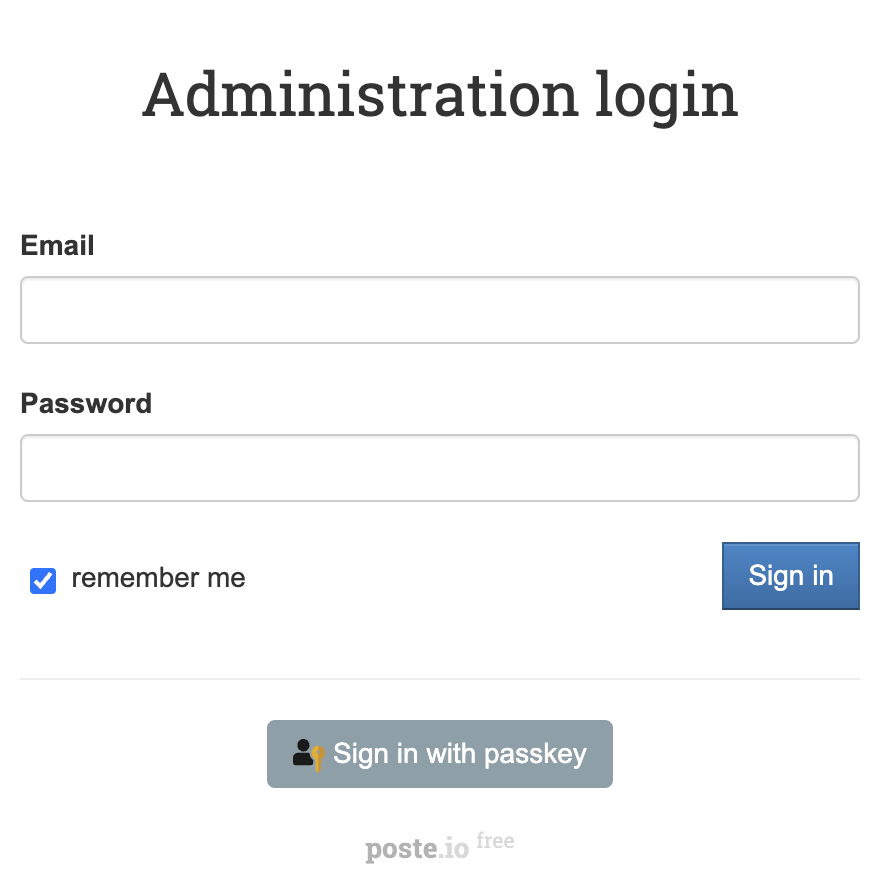
After completing your payment, you will receive an email at the address provided during registration notifying you that your server is ready. This email will include the IP address of your VPS and login credentials to access the Poste.io web interface:
- Link: https://ip/admin
- User: [email protected]
- Password: ****** (Sent via email)
To access Poste.io, log in with your administrator account. Enter your username and password on the login page to securely manage your mail and server settings.
Note
The access credentials for your VPS are listed in the "Virtual Servers" section — select your server and click "Instructions." This information is also provided in the email you receive after installation.
Initial Setup
After logging into poste.io, you’ll see a dashboard with key server statistics: number of users, domains, delivery counts, and free disk space. The menu on the left gives fast access to mailbox management, domains, quarantine, logs, system status, and advanced server settings. All sections are clearly grouped for easy navigation and everyday administration:
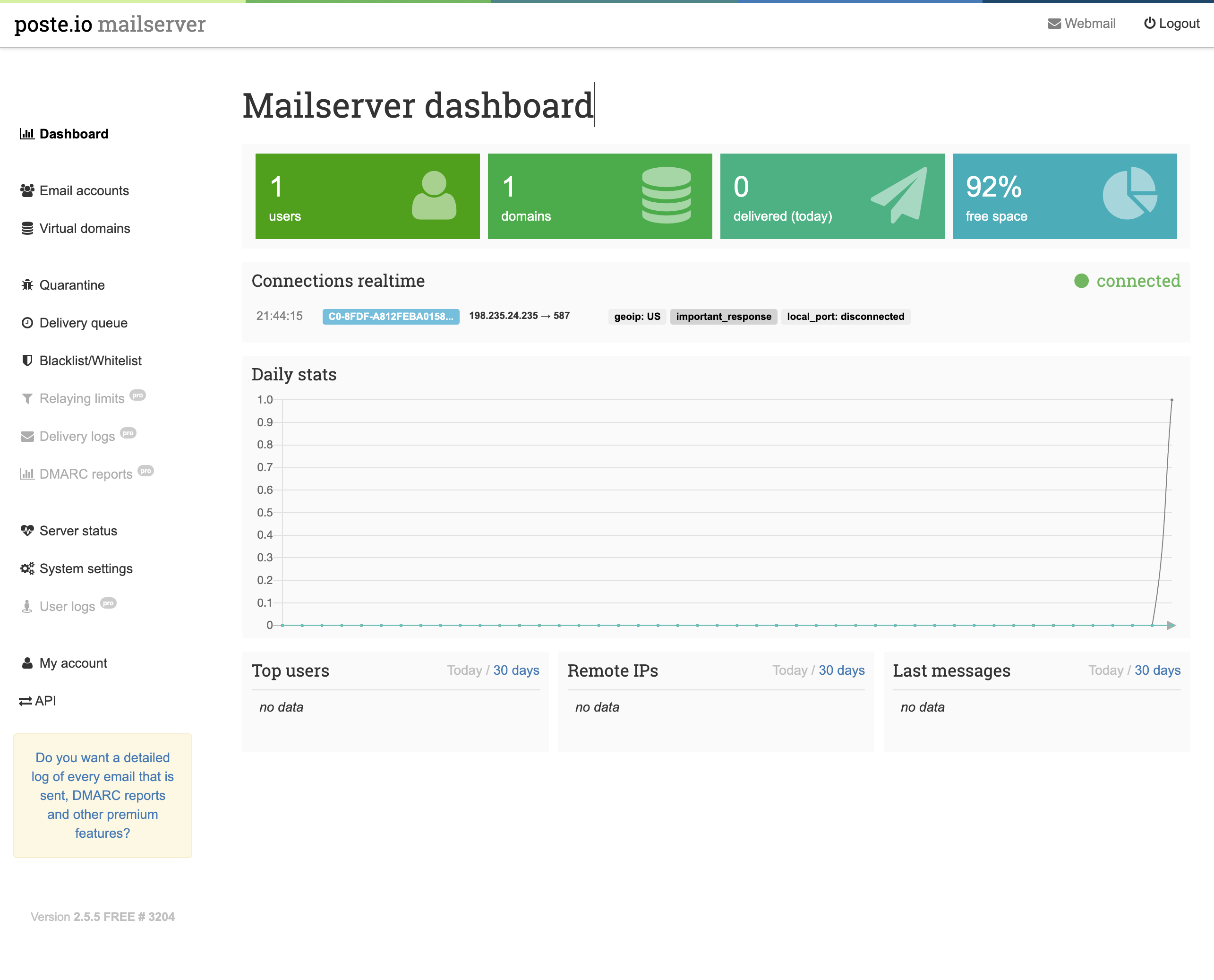
- Dashboard: See server health, usage stats, mail delivery counts, and free space at a glance.
- Email accounts: Manage all user mailboxes: add, edit, or remove accounts with ease.
- Domains & aliases: Add or manage multiple domains and email aliases for each user.
- Quarantine & delivery queue: View and release quarantined emails, manage the delivery queue in real time.
- Logs & monitoring: Check live logs for delivery, relaying, DMARC, and user activity; monitor server events.
- Blacklist/Whitelist: Configure sender and recipient filters to block or allow specific emails.
- Server & system settings: Adjust global server options, set limits, manage SSL certificates, and more.
- User account & API: Change your password, manage account details, and access API functions.
Note
Detailed information on the main Poste.io settings can be found in the developer documentation.
Updating Poste.io
Information
When a new version of Poste.io is released, you can safely update the container — only the application version will change, while all your settings and data will be preserved. You can learn about new releases on the official website.
cd /opt/poste
docker stop mailserver
cp -a data "data-$(date +%Y-%m-%d_%H-%M-%S)"
docker compose pull
docker compose up -d[root@server poste]# cd /opt/poste
[root@server poste]# docker stop mailserver
mailserver
[root@server poste]# cp -a data "data-$(date +%Y-%m-%d_%H-%M-%S)"
[root@server poste]# docker compose pull
[+] Pulling 1/1
✔ mailserver Pulled
[root@server poste]# docker compose up -d
[+] Running 1/1
✔ Container mailserver StartedOpening SMTP Ports
For security reasons, outgoing TCP ports (25, 465, and 587) are blocked by default on all VPS servers. This measure aims to prevent spam distribution. To lift the block, follow these steps:
- Register your domain zone. The A-record for your domain must point to your server’s IP address.
- Submit a request to technical support specifying that you need to open outgoing SMTP ports for sending email and the domain (or subdomain) from which it will be sent.
- After analyzing your domain name, we will make a decision on opening the SMTP ports and notify you.
Attention
Opening SMTP ports may require additional details about your domain name and its intended use.
Ready to launch your VPS?
Get started with a virtual server from just €4.50 per month. Choose a plan that suits your needs and enjoy fast NVMe SSD storage.
Get started