
Mattermost
One-click VPS application
Mattermost is a modern, open-source collaboration platform for secure team communication, file sharing, project management, and workflow automation. It is designed for self-hosted deployment on Linux servers, giving organizations complete control over their data. Mattermost features powerful group chat, private channels, video calls, advanced search, integration with DevOps and business tools, and role-based access management. Ideal for enterprises and technical teams seeking a flexible, extensible alternative to SaaS messengers.
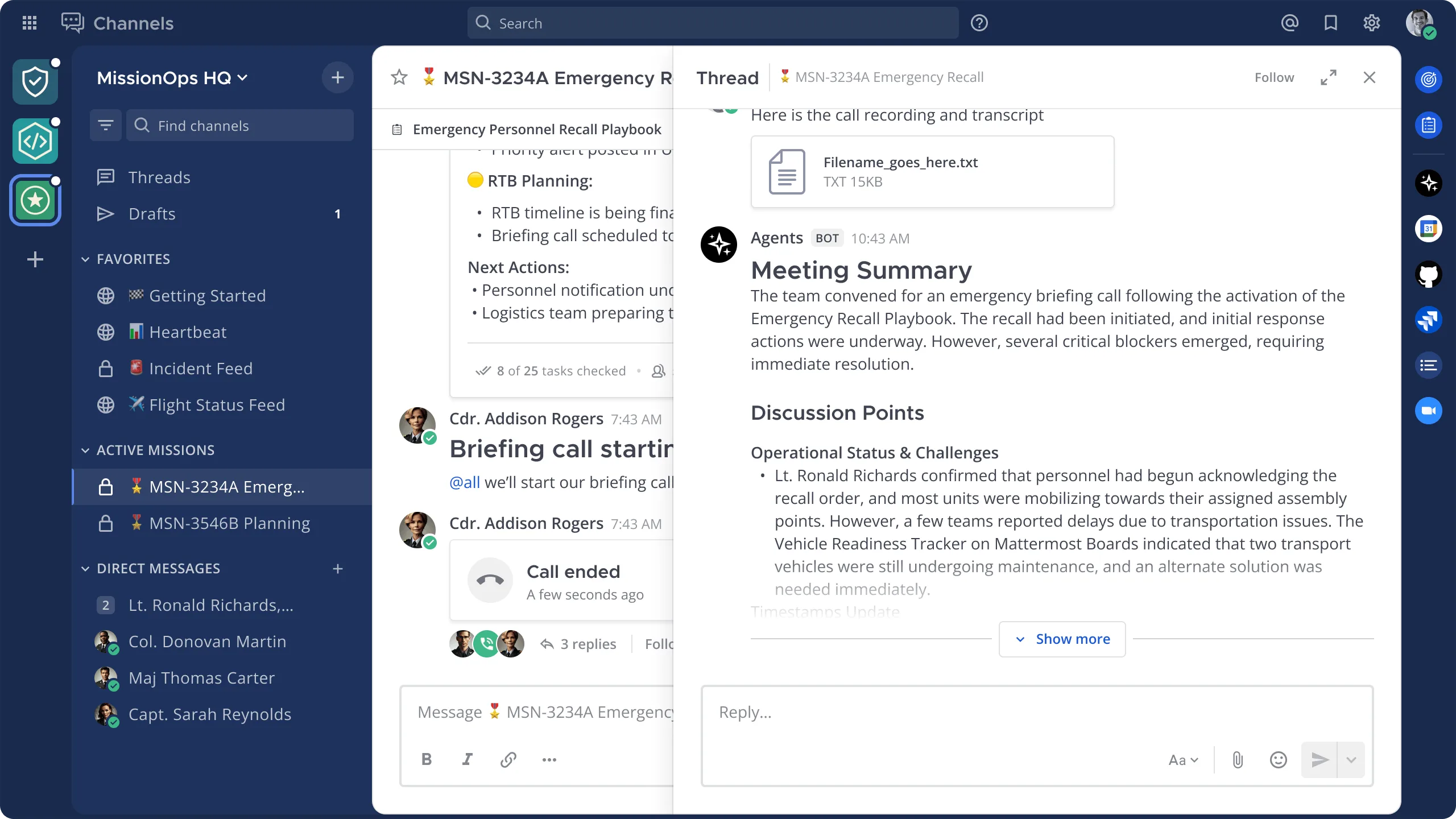


Information: Mattermost is a modern, open-source collaboration platform for secure team communication, file sharing, project management, and workflow automation. It is designed for self-hosted deployment on Linux servers, giving organizations complete control over their data. Mattermost features powerful group chat, private channels, video calls, advanced search, integration with DevOps and business tools, and role-based access management. Ideal for enterprises and technical teams seeking a flexible, extensible alternative to SaaS messengers.
Core Features
- Team messaging and channels: organize conversations in public, private, or group channels for easy collaboration.
- Self-hosted deployment: install Mattermost on your own Linux server to maintain full control over your data and security.
- Voice and video calls: communicate in real time with built-in audio and video conferencing features.
- File sharing and storage: upload, store, and share documents and media files securely within channels and direct messages.
- Integrations and bots: connect DevOps, project management, and business tools, or create custom bots using the powerful API.
- Advanced search and notifications: quickly find messages, files, and stay updated with flexible notification settings.
- Role-based access: flexible user management, permission control, and secure guest access for external users.
- Mobile and desktop clients: access Mattermost from any device with official apps for Windows, macOS, Linux, iOS, and Android.
Deployment Features
- Installed software:
Docker CEDocker Compose
- Used containers:
docker.io/mattermost/mattermost-team-editiondocker.io/postgresdocker.io/nginx(Reverse proxy that serves HTTPS traffic using pre-generated TLS/SSL certificates.)
- Open ports:
80,443– Web access (HTTP/HTTPS)
- Files path:
/opt/mattermost
Getting Started After Mattermost Deployment
After completing your payment, you will receive an email at the address provided during registration notifying you that your server is ready. This email will include the IP address of your VPS and login credentials to access the Mattermost web interface:
- Link: See your deployment email for the actual URL
When you first log in to Mattermost, you will be greeted by a simple setup wizard. On this screen, you’ll need to create your account by entering your email, choosing a username, and setting a password. Once registered, you can start collaborating with your team in your workspace.
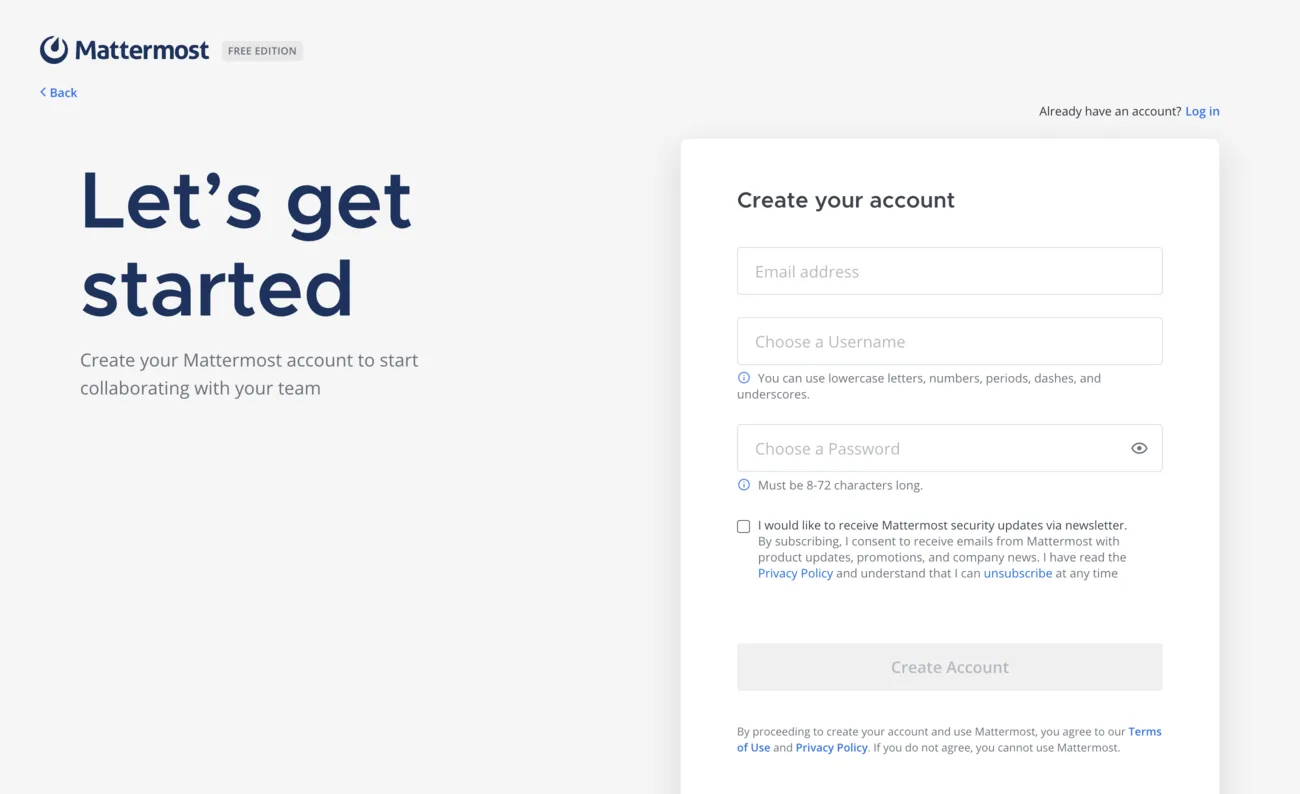
Initial Setup
After completing the initial setup, you can create a team workspace in Mattermost. You immediately get access to chats, channels, invitations, and onboarding tips for easy collaboration.
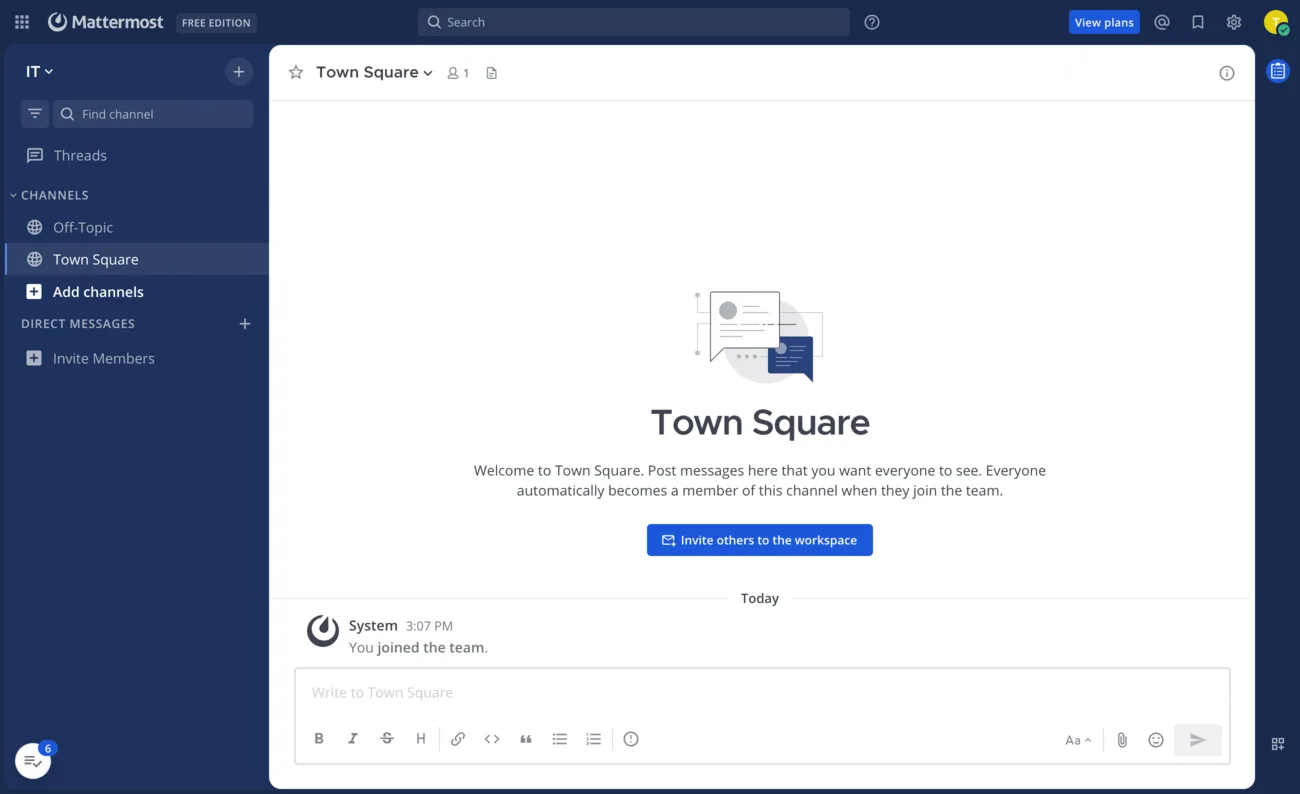
- Channel list: On the left, you can see the available channels (public and private), direct messages, and the ability to add new channels.
- Workspace header: The top panel displays the workspace name, edition, search bar, and navigation icons.
- Main chat area: In the center, you see the currently selected channel (e.g., Town Square) with its message history, description, and quick invitation button.
- Message composer: At the bottom is the field for writing and formatting messages, adding files, emojis, and sending posts to the channel.
- User and team management: On the left, you can also invite new members to your workspace for collaboration.
Note: Detailed information on the main Mattermost settings can be found in the developer documentation.
Updating Mattermost
Commands for updating Mattermost:
cd /opt/mattermost
docker compose -f docker-compose.yml -f docker-compose.nginx.yml pull
docker compose -f docker-compose.yml -f docker-compose.nginx.yml up -d
Example of how to perform the update in the SSH console:
[root@server ~]# cd /opt/mattermost

[root@server mattermost]# docker compose -f docker-compose.yml -f docker-compose.nginx.yml pull
[+] Pulling 3/3
✔ postgres Pulled
✔ mattermost Pulled
✔ nginx Pulled

[root@server mattermost]# docker compose -f docker-compose.yml -f docker-compose.nginx.yml up -d
[+] Running 3/3
✔ Container mattermost-postgres-1 Running
✔ Container mattermost-mattermost-1 Running
✔ Container nginx_mattermost  Running
Mattermost Mobile and Desktop Apps
If you already have access to a Mattermost server, you can connect directly using the server address or invitation link. Simply enter the provided URL in the Mattermost desktop or mobile app, or open it in your web browser to log in with your credentials and start collaborating.




Opening SMTP Ports
For security reasons, outgoing TCP ports (25, 465, and 587) are blocked by default on all VPS servers. This measure aims to prevent spam distribution. To lift the block, follow these steps:
- Register your domain zone. The A-record for your domain must point to your server’s IP address.
- Submit a request to technical support specifying that you need to open outgoing SMTP ports for sending email and the domain (or subdomain) from which it will be sent.
- After analyzing your domain name, we will make a decision on opening the SMTP ports and notify you.
Attention: Opening SMTP ports may require additional details about your domain name and its intended use.
Ready to launch your VPS?
Choose a plan that suits your needs and enjoy fast NVMe SSD storage.
Get started